How to Migrate from Emergent to Zeabur
This guide is the easiest way to take the code you’ve built in cloud IDEs like Emergent and turn it into a production-ready application that stays online 24/7.
Overview
Emergent are amazing for prototyping and getting code running quickly in the browser. However, when you are ready to share your app with the world without “sleeping” instances or bandwidth limits, you need professional hosting.
We strongly recommend Zeabur because it simplifies the transition from prototype to production. Using the Zeabur extension for your local editor, you can deploy your app without needing complex configuration files.
The Workflow:
- Export: Download your codebase from Emergent.
- Setup: Open the project locally in VS Code or Cursor.
- Deploy: Use the Zeabur Extension to push your app live in one click.
📝 Important Note: This guide covers the full stack. We will first deploy your application code, and in Step 7, we will specifically cover how to provision and connect a MongoDB database for apps that need to save user data.
Prerequisites
- Access to your Emergent project.
- VS Code or Cursor installed on your computer.
- A Zeabur account.
- Node.js installed locally (Version 18+ recommended).
Migration Overview
This plan moves you from a browser-based sandbox to a professional local development environment hosted on a scalable cloud.
- Source: Emergent (Node.js, Python, or Go).
- Editor: VS Code / Cursor.
- Host: Zeabur.
Step 1: Export Your Codebase
Option 1: The Direct Download Method (Best for simple export)
-
Wake Up Your Agent: If your project has been inactive, you might see a message saying “Agent went to sleep.” Click on your project to wake it up.
-
Access the Code Viewer: Look for the “Code” button (usually near the top right of the project interface).
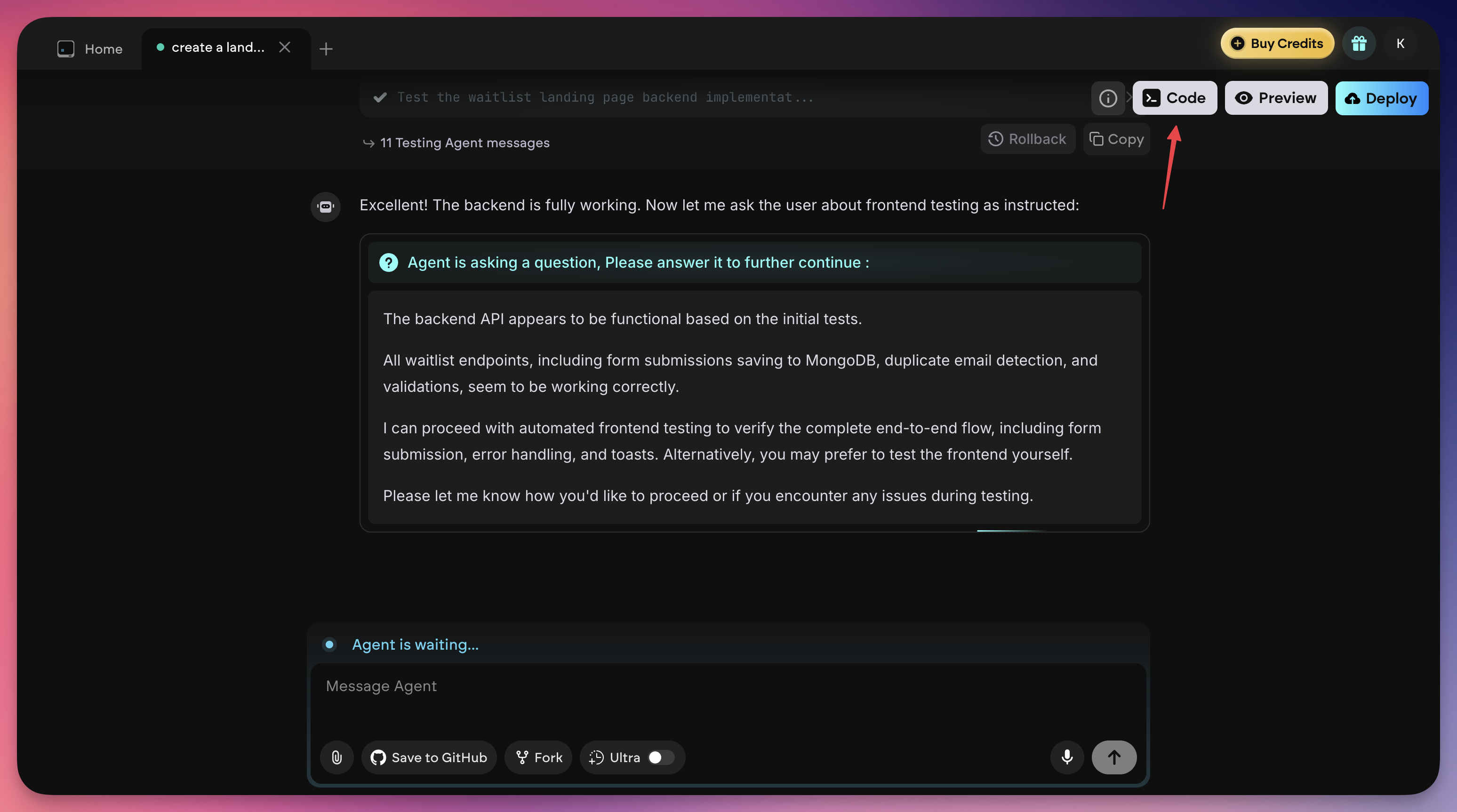
-
Get Credentials: When you click “Code”, a popup will appear with two things:
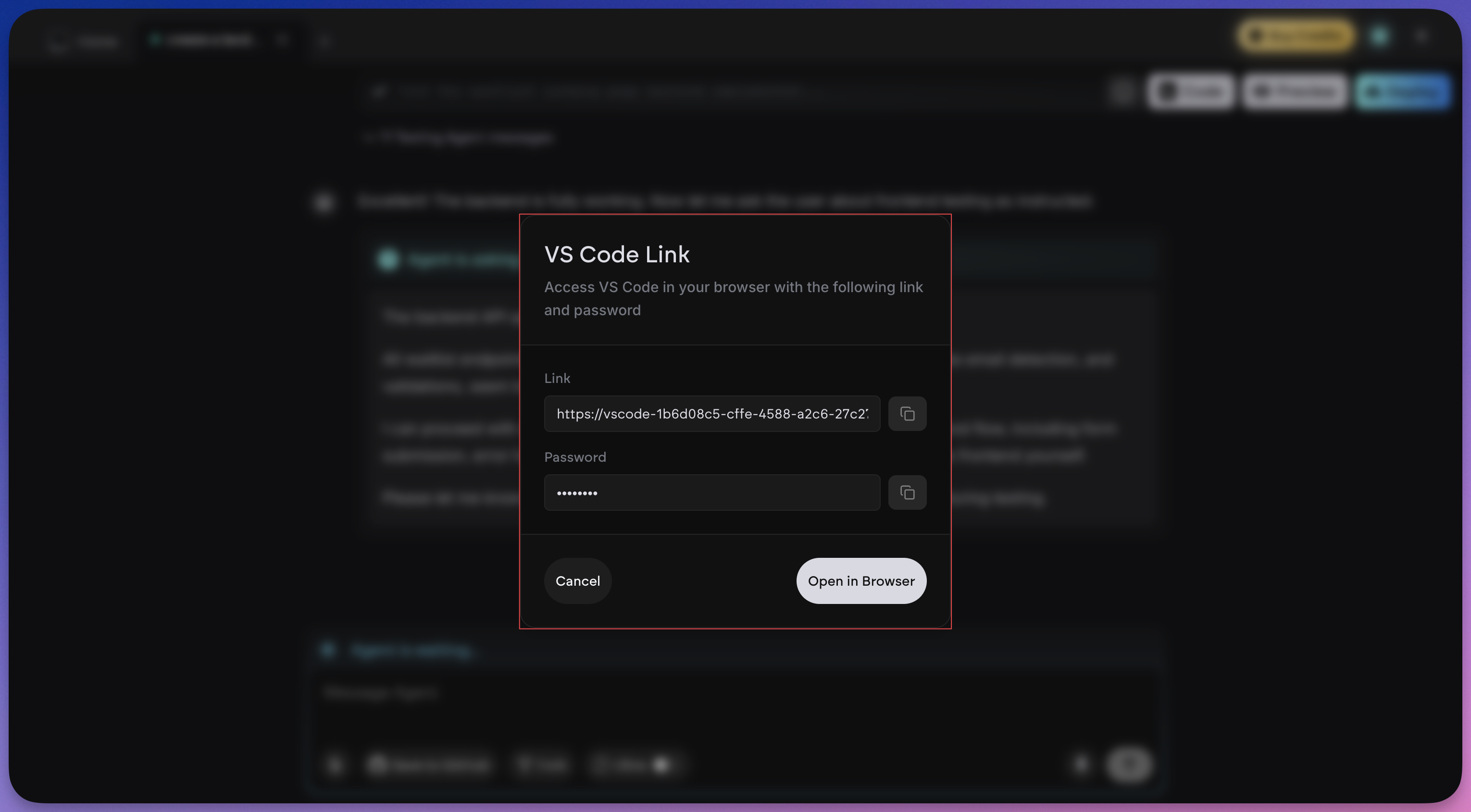
- A Link to a VS Code environment.
- A Password. Copy the password first, then click the link to open it in a new tab.
-
Unlock the Editor: Paste the password you copied into the prompt and hit Enter. You will now see a full VS Code interface in your browser.
-
Download Folders:
- On the left sidebar (File Explorer), you will see your project folders (usually
frontend,backend, or just the project root). - Right-click on the folder you want to keep.
- Select Download.
- This will save the folder as a
.zipfile to your computer.
- On the left sidebar (File Explorer), you will see your project folders (usually
Option 2: The GitHub Sync Method (Best for migration, but have to upgrade)
If you plan to move to Zeabur or another host, pushing directly to GitHub is often cleaner than downloading a zip file.
-
Connect GitHub: In the main Emergent chat/dashboard interface, look for the GitHub icon or a “Connect GitHub” button in your profile settings.
-
Authorize: Follow the prompts to authorize Emergent to access your GitHub account.
-
Push Code: In the chat interface, type a command like:
“Push this code to a new GitHub repository named my-app-export”
-
Verify: Go to your GitHub account to confirm the repository has been created. You can then clone this repository locally using
git clone.
Step 2: Set Up Local Environment (Cursor)
Now that the code is on GitHub, you will set it up locally to verify dependencies and make production adjustments.
-
Clone the Repository: Open Cursor, open the Command Palette (
Cmd+Shift+PorCtrl+Shift+P), and type> Git: Clone. Paste your new repository URL.Alternatively, via terminal:
git clone <https://github.com/your-username/your-repo-name.git> cd your-repo-name -
Install Dependencies: Projects usually detect the package manager automatically. Check for a lock file (
pnpm-lock.yaml,package-lock.json, oryarn.lock).# If using npm npm install # If using pnpm pnpm install -
Environment Setup:
- Locate the
.env.examplefile (if it exists) and duplicate it to create a.envfile. - Important: If your app used API keys (OpenAI, Supabase, etc.), you must manually add these keys to your local
.envfile. These secrets are not exported to GitHub for security reasons.
- Locate the
-
Local Test: Run the development server to ensure the app works locally.
npm run dev
Step 3: Open in a Local Editor and Install the Zeabur Extension
Unzip the file and open the project folder in a local code editor like VS Code or Cursor. To make deployment incredibly simple, you’ll use the Zeabur extension.
- Go to the Extensions Marketplace in your editor.
- Search for “Zeabur” and click Install.
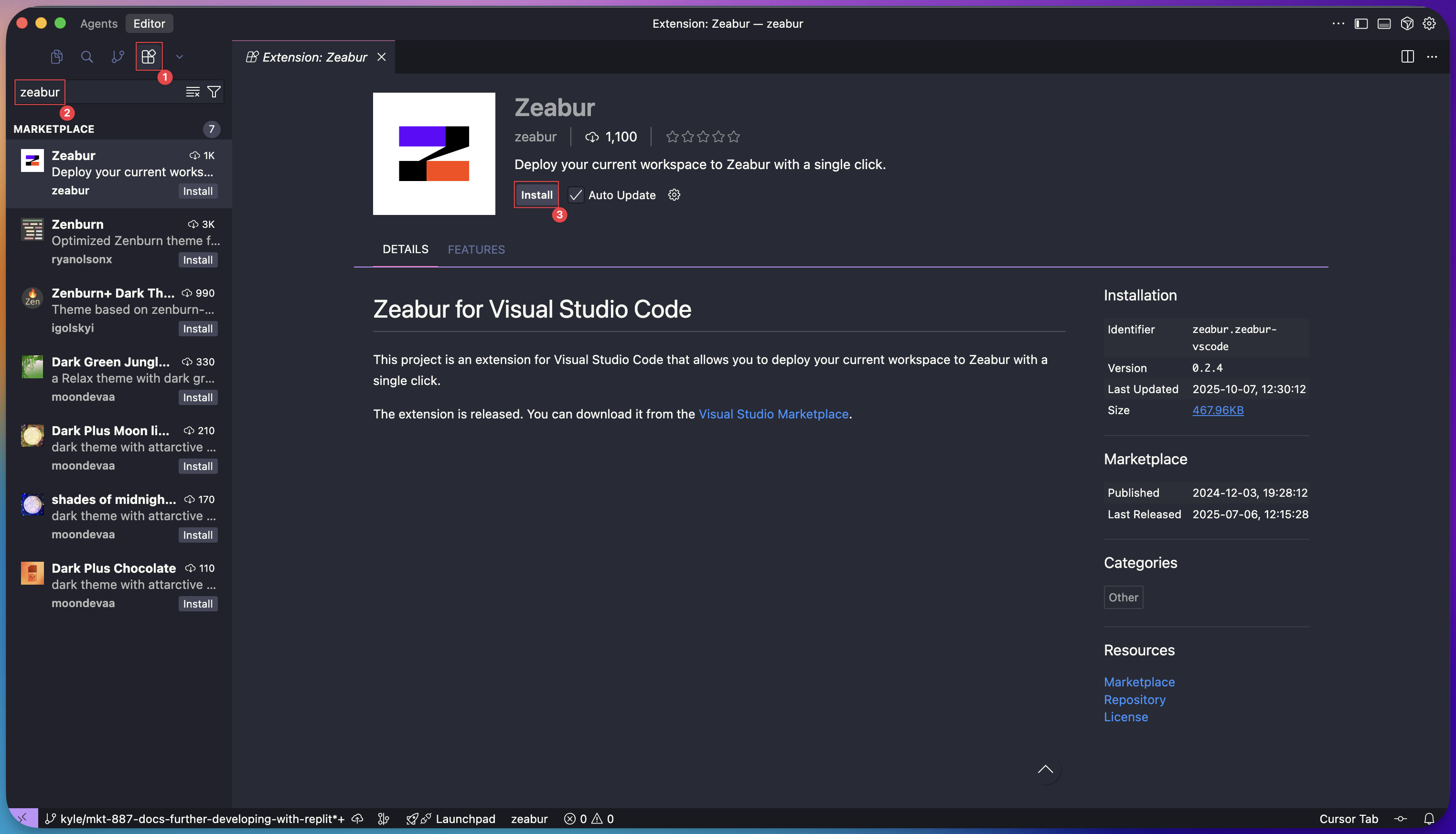
Step 4: Deploy with a Single Click
Now for the magic. With the extension installed, deploying your project is just a few clicks away.
- Click on the new Zeabur icon in the activity bar on the left.
- Click the “Deploy” button.
Your editor will then ask for permission to open a link in your browser. Click “Open”.

Step 5: Let the Zeabur AI Agent Handle the Rest
Once you’re redirected to Zeabur, the platform’s AI agent takes over. It analyzes your code to understand the project’s structure, dependencies, and build requirements.
The Zeabur agent will:
- Recognize that you have a full-stack application (e.g., a React frontend and an Express backend).
- Automatically configure the build and start commands.
- Provision all necessary services.
You’ll be prompted to select a project and a deployment region. After that, Zeabur handles everything else.
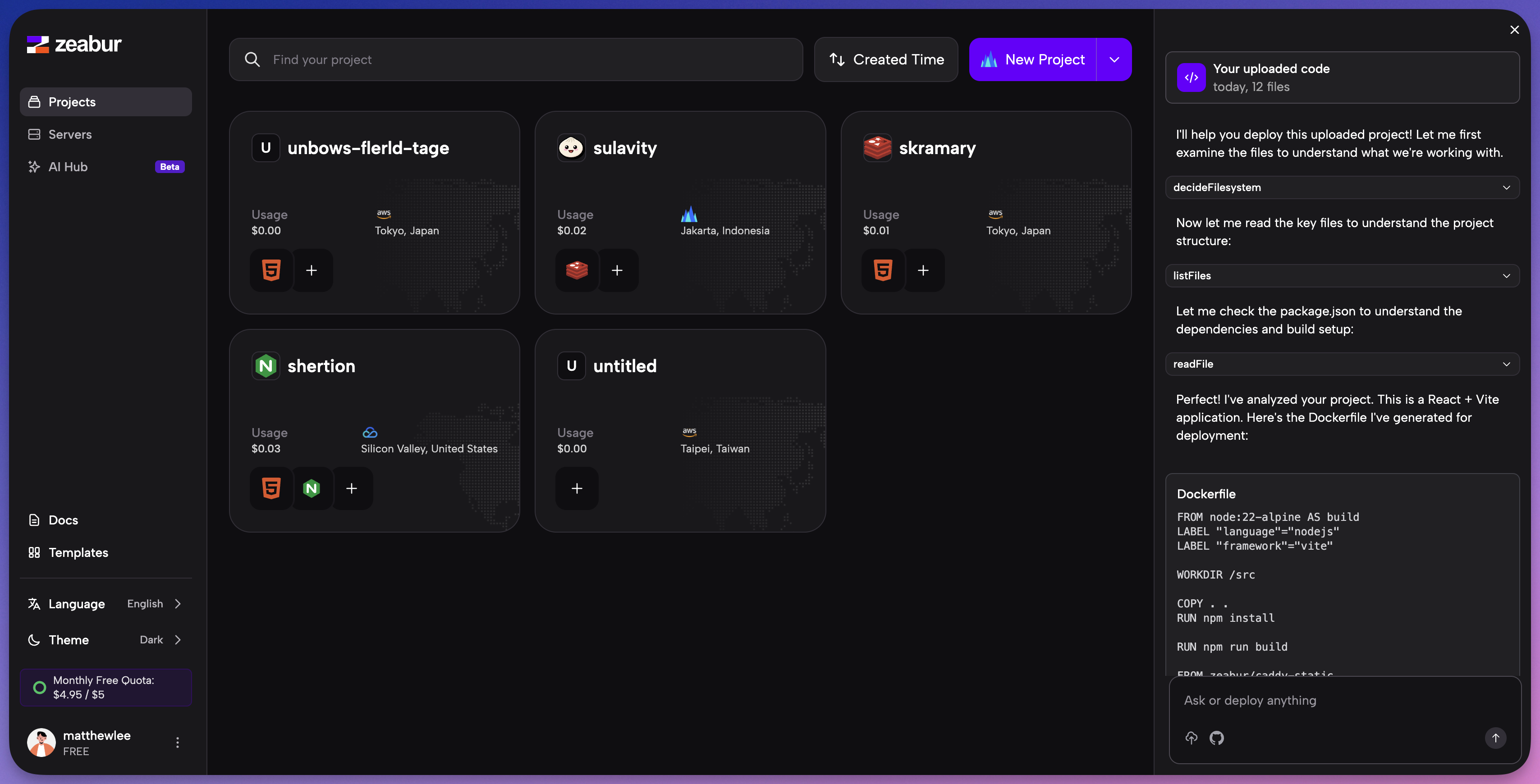
You can watch in real-time as your service builds and becomes fully operational. Zeabur even provides you with a live domain as soon as the deployment is successful.
Step 6: Domain & Networking
- Click on your Service in Zeabur.
- Navigate to the Networking tab.
- Click Generate Domain (to get a
.zeabur.appdomain) or Custom Domain to connect your own. - Visit the URL. Your Emergent application is now a fully deployed production app.
Step 7: Connect a Database (MongoDB)
If your Emergent app needs to persist user data, provision a MongoDB service and connect it to your app.
- Deploy MongoDB on Zeabur using the MongoDB template: 👉 MongoDB template
- In the MongoDB service page, open the Instruction / Connections tab and copy the connection string (URI).
- Set your app environment variable (commonly
MONGO_URI) to that URI:- Local development: use the Public connection string.
- Apps deployed on Zeabur: use the Internal/Private connection string (faster and avoids public bandwidth).
That’s it! You’ve successfully moved your project from a prototype on Emergent to a live, production-ready application on Zeabur without writing a single line of configuration. This seamless workflow lets you focus on what matters most: building great software.