How to Deploy Your Bolt.new Project to the Web with Zeabur
This guide is the easiest way to take the code generated by Bolt.new and turn it into a real, live website that you can share with friends or customers.
Overview
Bolt.new is amazing for creating your app’s design and features, but to put it online, you need “hosting.” We strongly recommend Zeabur because it handles the technical heavy lifting for you. It takes your code and puts it on a live URL in just a few clicks.
The Workflow:
- Create: Generate your app in Bolt.new.
- Refine: Save the code to your computer and check it with Cursor.
- Deploy: Host it live on Zeabur.
📝 Important Note: This guide focuses on getting your website online (the Frontend). If your app needs to save user data or logins, that requires a Database. We will cover how to add a database in a separate, follow-up tutorial!
Prerequisites
- A GitHub account.
- Cursor installed on your computer.
- A Zeabur account.
- Node.js installed locally (Version 18+ recommended).
Migration Overview
This plan moves you from a “no-code” environment to a “pro-code” environment while keeping the AI assistance you love.
- Source: Bolt.new (React + Vite + Tailwind).
- Editor: Cursor / Windsurf / Antigravity
- Host: Zeabur
Step 1: Export Code from Bolt.new to GitHub
Before you can deploy, you must move your code from the Bolt sandbox to a version control system.
-
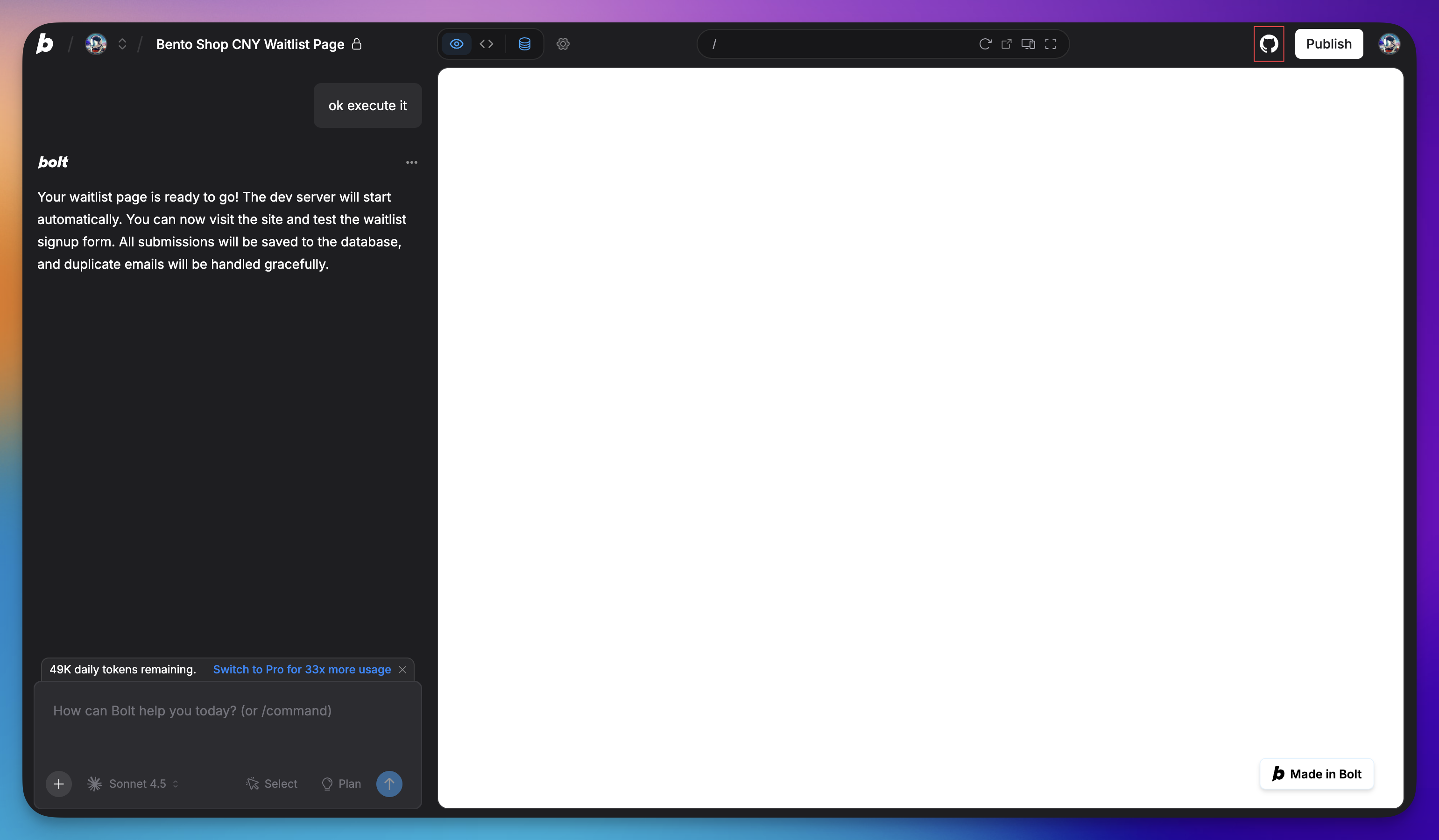
Open the Deployment Panel: inside your Bolt.new project, look for the Deploy or Publish button in the top right header, then click the GitHub button.
-
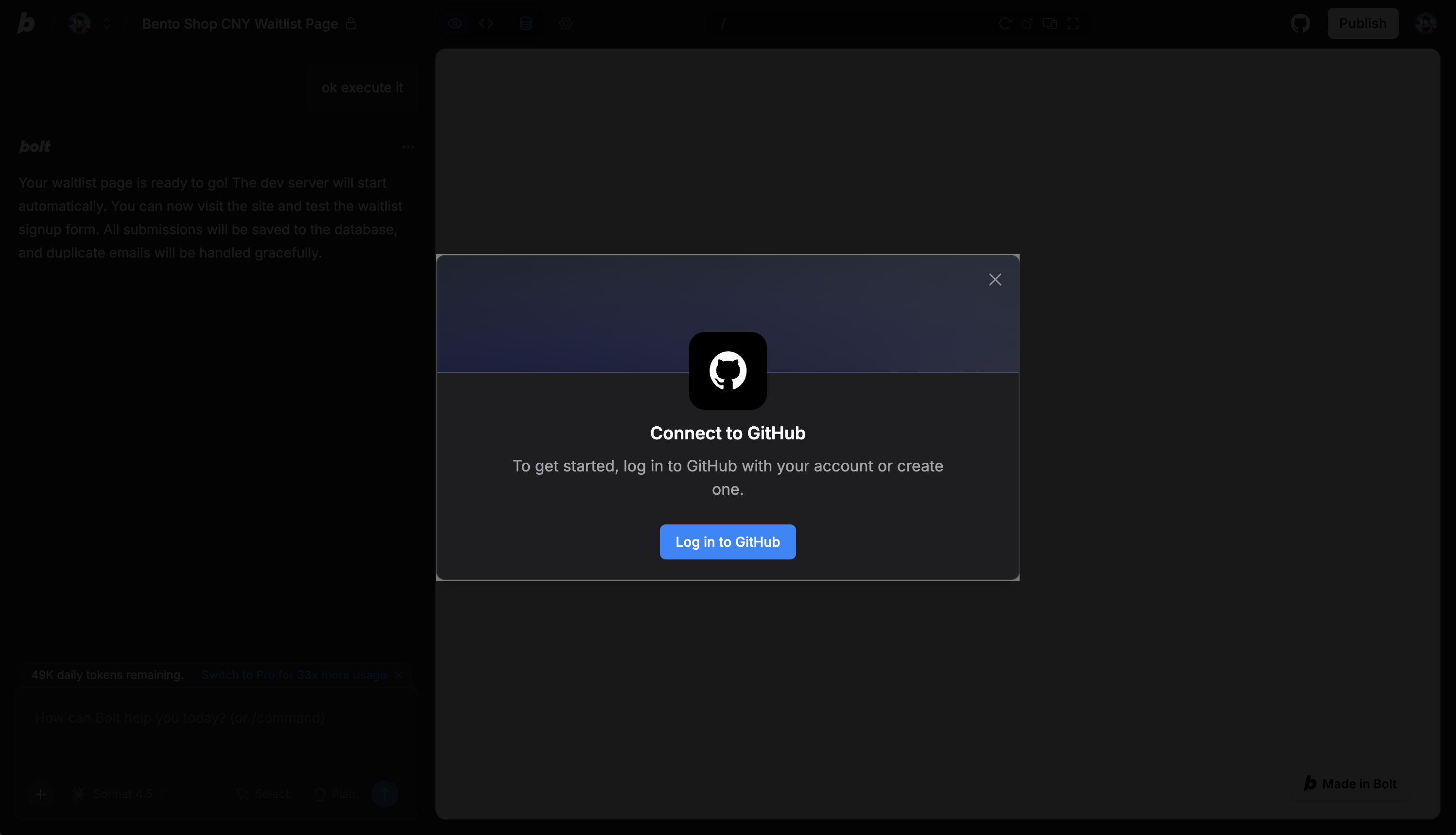
Connect to GitHub:
- Select “Connect to GitHub”.
- Authorize Bolt to access your GitHub account if prompted.
-
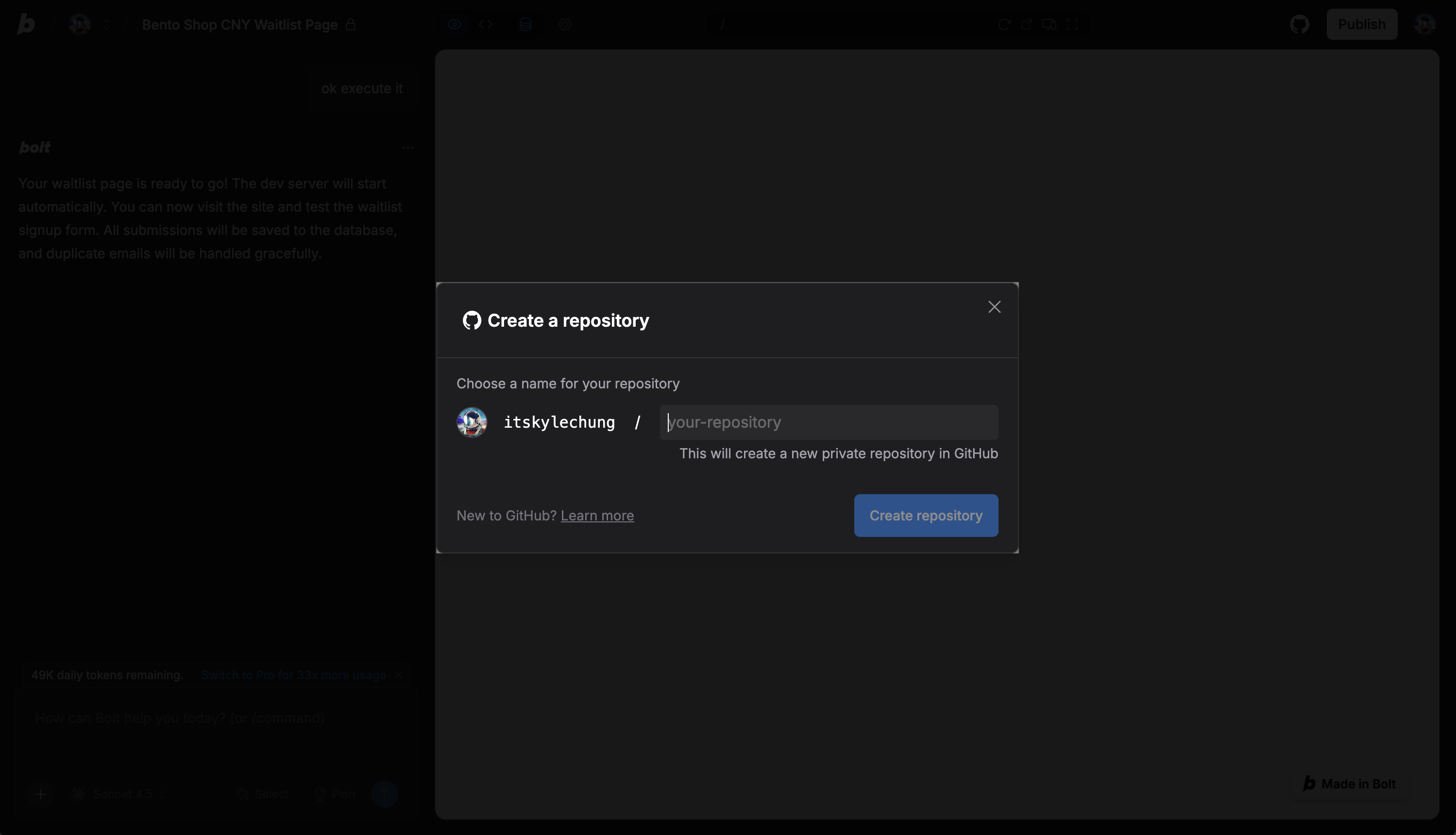
Create Repository:
- In the modal, enter a repository name (e.g.,
my-bolt-app). - Choose visibility (Public or Private).
- Click Create repository.
- In the modal, enter a repository name (e.g.,
-
Verify: Wait for the confirmation message. Visit your GitHub profile to ensure the repository has been created and populated with code.
Step 2: Set Up Local Environment (Cursor)
Now that the code is on GitHub, you will set it up locally to verify dependencies and make production adjustments.
-
Clone the Repository: Open Cursor, open the Command Palette (
Cmd+Shift+PorCtrl+Shift+P), and type> Git: Clone. Paste your new repository URL.Alternatively, via terminal:
git clone <https://github.com/your-username/your-repo-name.git> cd your-repo-name -
Install Dependencies: Bolt projects usually detect the package manager automatically. Check for a lock file (
pnpm-lock.yaml,package-lock.json, oryarn.lock).# If using npm npm install # If using pnpm (common in Bolt) pnpm install -
Environment Setup:
- Locate the
.env.examplefile (if it exists) and duplicate it to create a.envfile. - Important: If your Bolt app used API keys (OpenAI, Supabase, etc.), you must manually add these keys to your local
.envfile. Bolt does not export your secrets to GitHub for security reasons.
- Locate the
-
Local Test: Run the development server to ensure the app works outside the Bolt sandbox.
npm run dev
Step 3: Open in a Local Editor and Install the Zeabur Extension
Unzip the file and open the project folder in a local code editor like VS Code or Cursor. To make deployment incredibly simple, you’ll use the Zeabur extension.
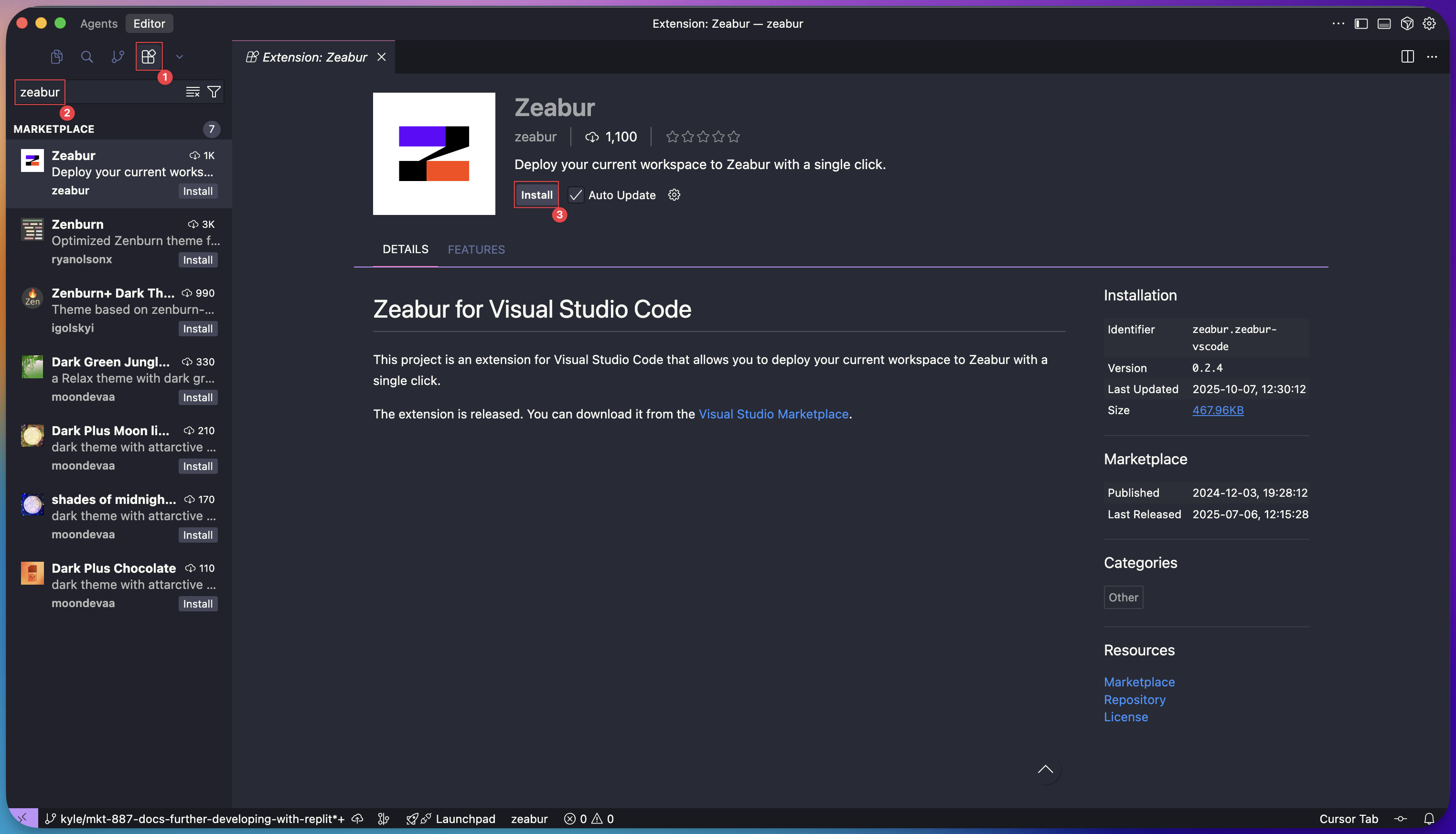
- Go to the Extensions Marketplace in your editor.
- Search for “Zeabur” and click Install.
Step 4: Deploy with a Single Click
Now for the magic. With the extension installed, deploying your project is just a few clicks away.
- Click on the new Zeabur icon in the activity bar on the left.
- Click the “Deploy” button.
Your editor will then ask for permission to open a link in your browser. Click “Open”.

Step 5: Let the Zeabur AI Agent Handle the Rest
Once you’re redirected to Zeabur, the platform’s AI agent takes over. It analyzes your code to understand the project’s structure, dependencies, and build requirements.
The Zeabur agent will:
- Recognize that you have a full-stack application (e.g., a React frontend and an Express backend).
- Automatically configure the build and start commands.
- Provision all necessary services.
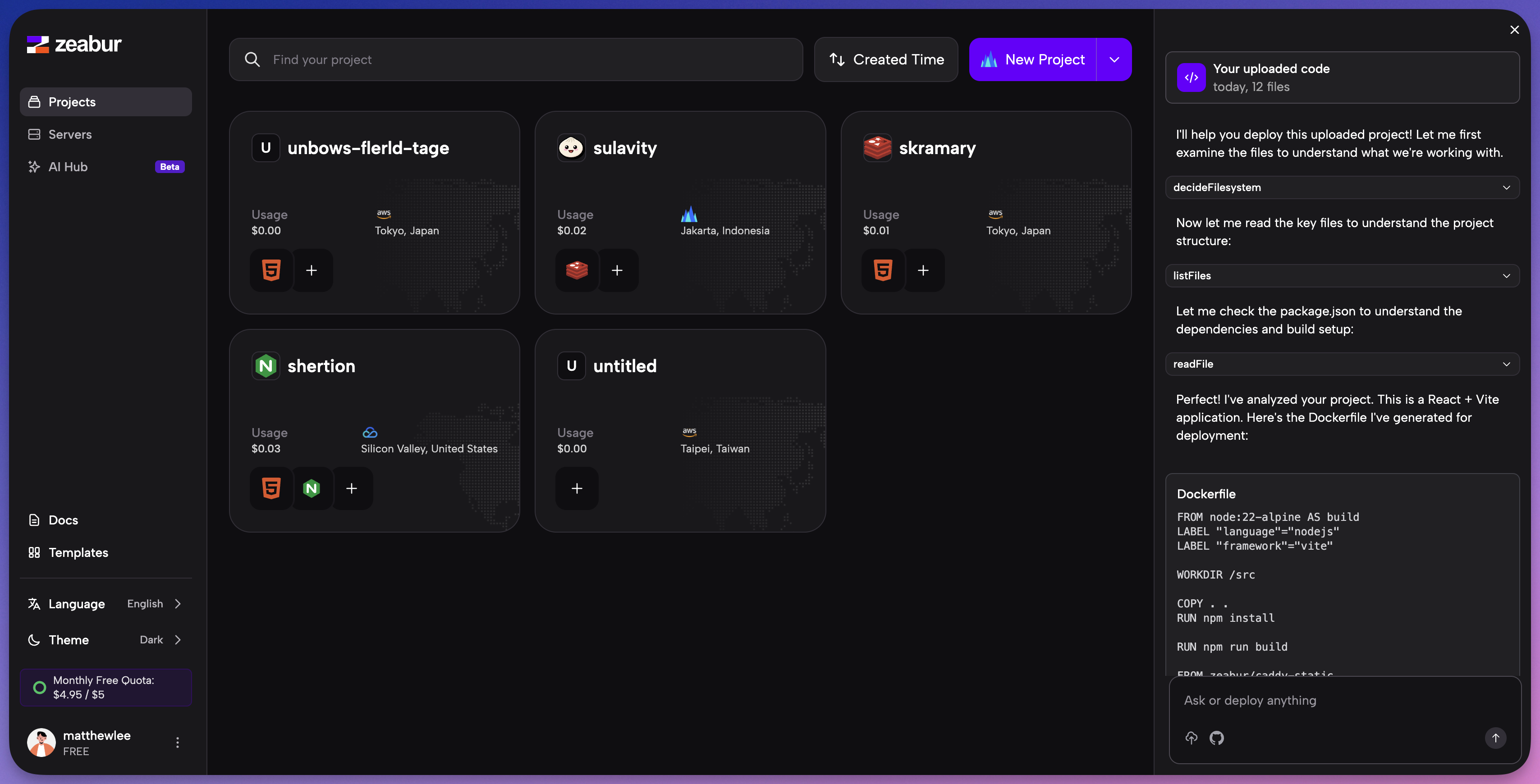
You’ll be prompted to select a project and a deployment region. After that, Zeabur handles everything else.
You can watch in real-time as your service builds and becomes fully operational. Zeabur even provides you with a live domain as soon as the deployment is successful.
Step 6: Domain & Networking
- Click on your Service in Zeabur.
- Navigate to the Networking tab.
- Click Generate Domain (to get a
.zeabur.appdomain) or Custom Domain to connect your own. - Visit the URL. Your Bolt.new application is now a fully deployed production app.
Step 7: Connect a Database (Supabase)
If your Bolt.new app allows users to log in, create accounts, or save data, it requires a database (usually Supabase).
Currently, you have successfully deployed the Frontend (the visual interface). To make the data and authentication features work, you need to connect the backend by adding your API keys to Zeabur’s Variable settings.
We have a dedicated guide to walk you through getting your Supabase keys and adding them to Zeabur:
👉 Follow the step-by-step guide to create and connect Supabase on Zeabur.
That’s it! You’ve successfully moved your project from a prototype on Bolt.new to a live, production-ready application on Zeabur without writing a single line of configuration. This seamless workflow lets you focus on what matters most: building great software.